Deliver Course-Aware Student Support Inside Brightspace
A lot of student support starts with a small question.
Not a full meeting. Not a long email thread. Just, “Can you explain this part again?” or “What did we cover in that module?” or “What should I review before the quiz?”
That is normal. It is also where instructors lose a surprising amount of time.
During a busy week, the same question can show up again and again from different students. One student asks after class. Another sends an email. Someone else posts in the LMS. The instructor answers each one separately, because they want to be helpful, but the pattern is easy to miss until it starts showing up somewhere else — lower quiz scores, weaker assignments, less participation, or students quietly falling behind.
CampusMind’s Virtual Teaching Assistant gives students a place to get course-aware help directly inside Brightspace.
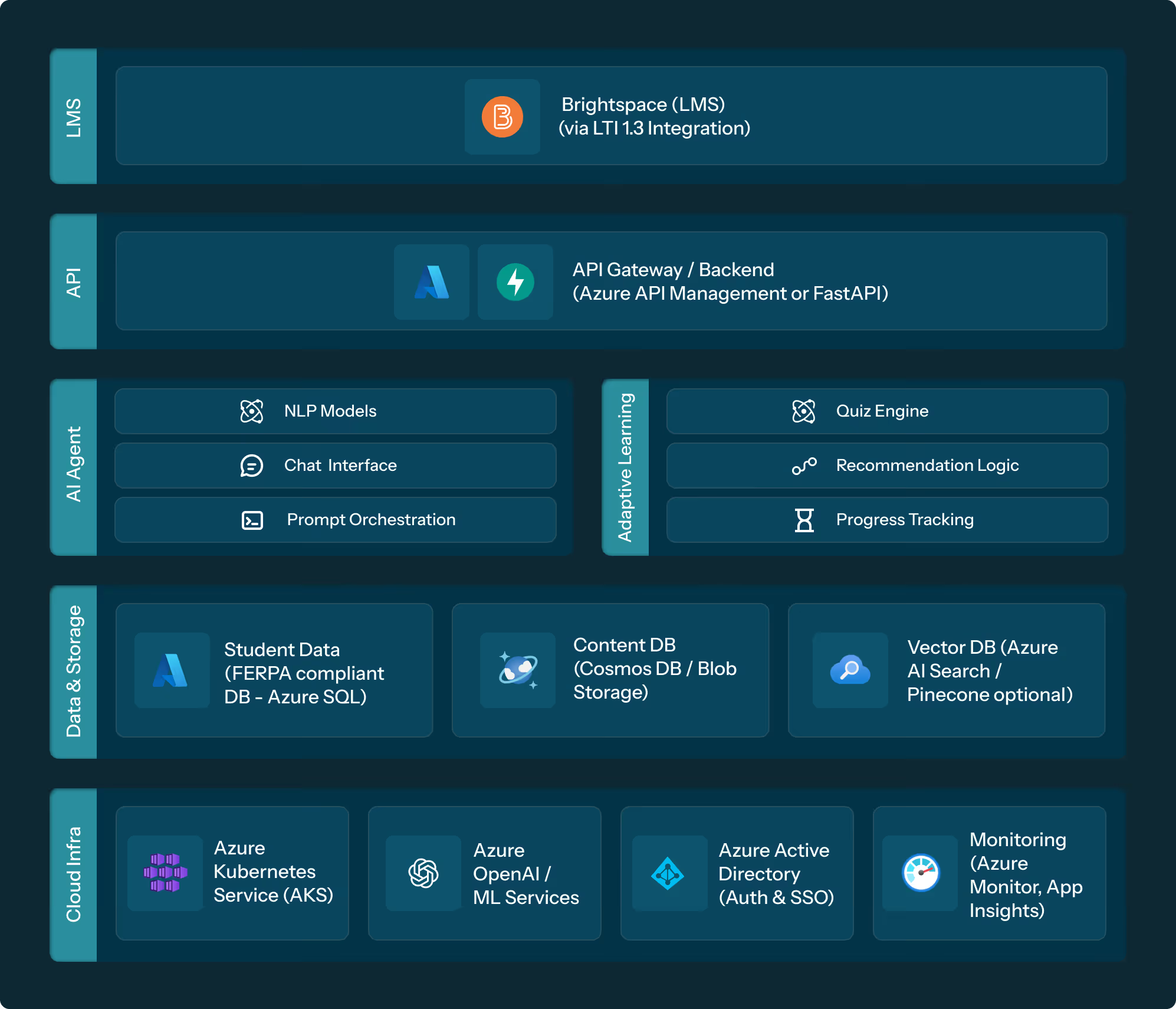
It connects through LTI 1.3 and works from the materials already available in the course, including modules, PDFs, assignments, discussions, announcements, and other LMS content. Students can ask questions, review concepts, prepare for quizzes, and get help that stays tied to the course. Instructors get something useful too: a clearer view of what students keep asking and where the class may need a little more reinforcement.
What This Agent Does
Brighspace Integration: The VTA connects to Brightspace through an LTI 1.3 plugin. It uses the content already in the course, such as modules, PDFs, assignments, discussions, and other LMS materials, so responses stay grounded in what students are actually expected to learn.
24/7 Student Support: Students can get help when the question comes up, not only during office hours. Some questions are simple but still important. The VTA gives students a way to get that clarification without adding another repeated email to the instructor’s inbox.
Study and Quiz Preparation: The VTA can help students review key concepts, create practice questions, and prepare for quizzes, assignments, or exams based on the course structure and schedule. It is not a replacement for teaching. It is a support layer students can return to when they need to review.
Instructor Insights: Instructors can see the questions students are asking most often. That matters, because repeated questions usually point to something: a concept that did not land, a reading that needs more context, or an assignment instruction that may need to be clearer.
Real-Time Course Updates: As new materials, assignments, deadlines, or announcements are added in Brightspace, the VTA stays aligned with the course. Students are working from the current version of the course, not old information.
Benefits to Instructors
Fewer repeat questions to answer one by one
More time for teaching, feedback, and meaningful student support
Better visibility into where students are getting stuck
A clearer sense of which topics may need another pass
Support that scales without drifting away from the course material
What Students Gain
Help inside Brightspace, where they already work
Faster answers based on course materials
Support outside office hours
Help reviewing for quizzes, assignments, and exams
A consistent way to revisit course concepts when they need it
Integrate with Brightspace: Add the Virtual Teaching Assistant to your institution’s Brightspace environment using the LTI 1.3 integration.
Make Course Content Available: Keep course materials available in Brightspace so the VTA has the right context. The stronger and more complete the course content is, the more useful the support becomes.
Customize the Interaction: Set the tone, level of guidance, and feedback style to match the course and instructor preferences. Some instructors may want brief guidance. Others may prefer more detailed explanations or study-focused responses.
Deploy and Monitor: Once it is live, students can start using the VTA for course support. Instructors can review usage, look at common questions, and adjust the experience as the course moves forward.